6. Exams and Proctoring
An exam in BodhiTree is a lab with exam mode turned on. It gains a fixed duration, a start window, IP restrictions, a live proctoring dashboard, and the ability for you to start and end it for everyone at once.
Who can use this: Course owner, INSTRUCTOR, and STA; these two roles have identical exam powers. JTAs cannot start, end, approve, or proctor an exam.
6.1 Creating an exam
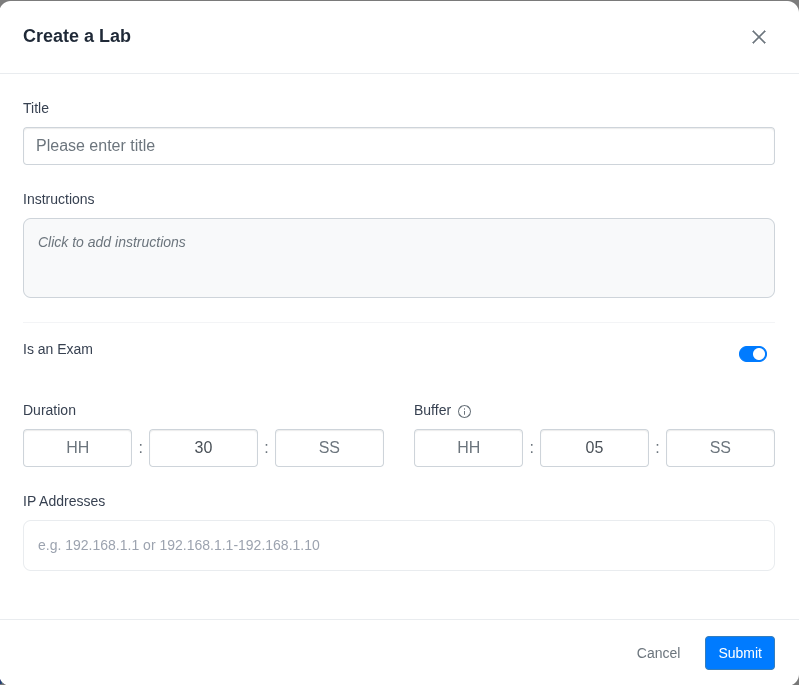
Go to Course Content → Labs and click to create a lab.
Give it a title (required; saving without one raises the error toast “Lab title cannot be empty”).
Turn on Is an Exam.
Turning on exam mode hides the date pickers and replaces them with:
Field |
Default |
Minimum |
Meaning |
|---|---|---|---|
Duration |
30 min |
30 min |
How long each student gets |
Buffer |
5 min |
5 min |
How late a student may start without being flagged |
IP Addresses |
(empty) |
n/a |
Which machines may sit the exam |
Below the minimums you get “Exam duration must be at least 30 minutes” and “Buffer time must be at least 5 minutes”.
⚠️ The 30-minute and 5-minute minimums are enforced only in the browser form. They are not enforced by the server. Do not treat them as a safety net if you are scripting anything against the API. The server rejects only a zero duration (“Exam duration cannot be zero.”); any other value, including a zero or negative buffer, is accepted.
Leaving IP Addresses empty means no IP restriction at all. The create form
substitutes 0.0.0.0-255.255.255.255 when you save with the field blank, so that is
what gets stored for exams made through the UI. An exam created through the API
without an IP range stores an empty value instead, and the server then skips the IP
check altogether. Both amount to “everywhere” — set a real range if you intend to lock
the exam to a lab room.
Other settings that matter
Setting |
Default |
Effect |
|---|---|---|
Additional time |
0 |
Extra time granted to everyone. Not a field on the create form — you set it from the proctoring dashboard (§6.6), which shows the running total as “Overall Adjusted Time” |
Visible for all |
Off |
⚠️ Bypasses every proctoring and IP check. Not a checkbox you tick — it is moved by the exam lifecycle itself. See the warning below |
The database also carries
enforce_ip_addrandenable_live_dashboardcolumns. Neither has a control in the UI and neither affects the exam flow: IP checking is driven purely by whether an IP range is set, and the live proctoring dashboard is a page you navigate to, not a feature you switch on. Ignore them.
⚠️ “Visible for all” disables proctoring entirely. With it on, every student is auto-approved and no IP range check, collision check or late-start check runs at all. It exists to release an exam’s content after the fact.
You never set this flag directly; the exam lifecycle moves it for you:
Action |
Becomes |
|---|---|
End Exam (either mode) |
On — this is how ending an exam releases its content |
Make exam visible |
On |
Start Exam |
Off |
Reset Exam |
Off |
Importing or duplicating an exam lab |
Off |
⚠️ Starting an exam turns it back off. If an ended exam’s content suddenly disappears for students, the usual cause is that somebody pressed Start Exam again afterwards — restarting clears the flag along with the exam’s start and end times. Editing and saving the lab does not clear it: the field is not part of the edit form, and the server preserves the existing value on any update that omits it.
6.2 Running the exam
Starting
Students cannot begin until you start the exam. Before you do, a student pressing Start just gets the toast “Exam is not started yet”.
Once you start it, each student presses Start, confirms, and their individual timer begins.
The start buffer
A student who starts within buffer time of the exam start is treated as normal. A student who starts after that is flagged LATE_START and lands in your approval queue; they see a page reading “Access not granted.” / “Please contact your instructor for more information.” until you act.
Only a late start is flagged for being out of range. A student who starts on time from outside the allowed IP range is refused outright — they are told “You are not allowed to submit from this IP address” and never reach your approval queue at all.
Ending
End Exam presents a choice rather than acting immediately. It first lists every student who still has time left, then offers:
Choice |
What happens |
|---|---|
End for everyone now (hard end) |
Caps every running student at once: their timers are truncated to the current moment, the exam is marked ended, and every connected student gets a live notification — “The instructor has ended the exam. No further submissions are allowed.” — with no page reload needed |
Let them continue (soft end) |
Releases the exam’s content but lets students with time remaining keep working until their own timer expires. The exam is not marked ended, no timer is truncated, and no notification is sent to anyone |
The choice modal also opens by itself when the dashboard countdown reaches zero.
After a hard end you cannot approve any more students: approval fails and the dashboard reports “Exam has ended, Can’t approve now”. After a soft end approvals still work normally. Hard-end the exam only once you have finished handling the approval queue.
Reset Exam is a separate and destructive action: it clears the proctor log entirely and returns the exam to its not-started state, discarding every student’s start time, flag, and approval. Use it only when you intend to re-run the exam from scratch.
6.3 The proctoring dashboard
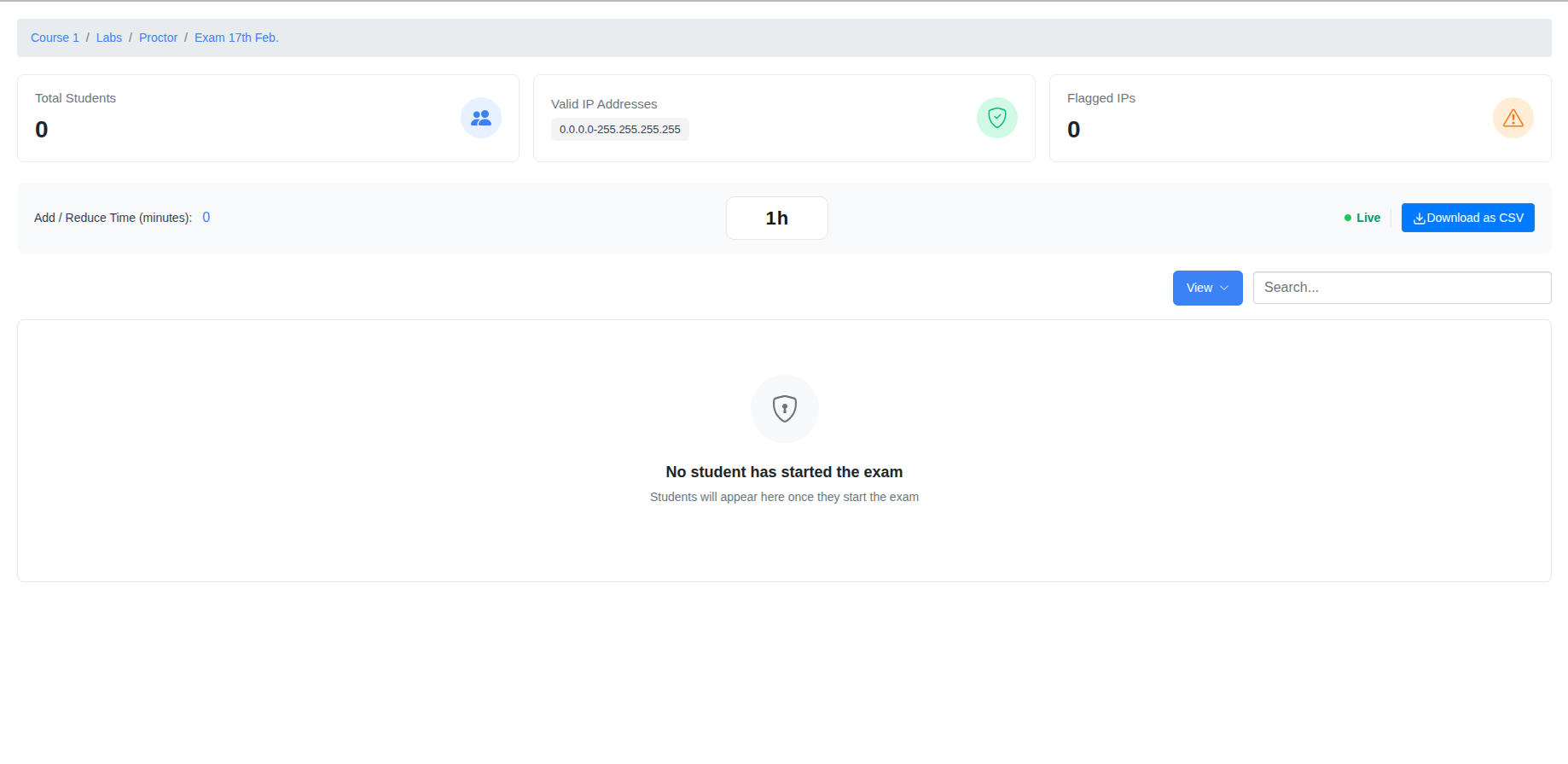
The dashboard lists every student with their email, IP address, start time, a live Timer, the time added or reduced, and a Status column that merges their approval state and any flag into one cell. Name, Roll No, and New IP Address are optional columns you can switch on.
Note that the Timer column is a live countdown to each student’s individual end time, not a static duration — it ticks down without a page reload.
Flag reasons
Flag |
What happened |
|---|---|
NONE |
No flag; the student shows as Active. This is the default |
IP_COLLISION |
This IP is already in use by another active student |
IP_CHANGED |
The student moved machines, but stayed inside the allowed range |
IP_OUT_OF_RANGE |
The student connected from outside your IP range |
LATE_START |
They started after the buffer expired |
MANUAL_FLAG |
You flagged them yourself |
When more than one applies, the priority is IP_COLLISION → IP_OUT_OF_RANGE → LATE_START. IP_CHANGED ranks below IP_OUT_OF_RANGE: a student who moves machines but stays inside the allowed range is flagged IP_CHANGED only when nothing higher-priority applies.
On screen the flag appears as a short label with an icon — ⚠️ IP Collision, 🔄 IP Changed, 🚫 Out of Range, ⏰ Late Start, 🚩 Flagged, ✅ Active. The raw names in the table above appear only in the CSV export.
Each flag also carries a detail line, which you read by hovering the Status cell to reveal its tooltip, for example:
“IP 10.2.3.4 already in use by student@example.com”
“Changed from 10.2.3.4 to 10.2.3.9”
“Accessed from 8.8.8.8 (OUTSIDE allowed range). Original IP: 10.2.3.4. Allowed range: 10.2.0.0-10.2.255.255”
“Started 7 minutes after buffer expired”
A student who is both late and has an IP problem gets a combined detail line instead, worded slightly differently:
“IP 10.2.3.4 already in use by student@example.com. Also late by 7 minutes.”
“Accessing from 8.8.8.8 (OUTSIDE allowed range: 10.2.0.0-10.2.255.255). Also late by 7 minutes.”
6.4 Approving a flagged student
Approving is the action that lets a flagged student into the exam. When the flag involves a changed IP, you must decide which machine is the real one:
Choice |
Effect |
|---|---|
Accept New IP |
The new machine becomes the student’s machine. The old machine’s session is killed. |
Keep Original IP |
The original machine stays. The new machine’s session is killed. |
Both sit in an Approve IP dropdown with nothing preselected — you must pick one. Accept New IP is merely listed first; it is also what the API falls back to when no choice is supplied.
In both cases the rejected machine is forcibly logged out; its login tokens are deleted and its browser is disconnected immediately. This is the correct response to a suspected impersonation: whichever machine you reject stops working at once.
⚠️ Approving an IP_COLLISION also evicts everyone else on that IP. Every other active student sharing the address is marked as left, un-approved, has their login tokens deleted and their browser disconnected — exactly as though you had rejected them — and their flag detail is rewritten to “Evicted from IP …: instructor approved … for this machine”. Check who else is on the address before you approve.
Flags are kept after approval. Approving does not erase the record: the flag, timestamp, and detail text remain for your audit afterwards, and the student’s status reads Active (was: …).
How much time do they get?
This choice applies only to a student who has not started yet — in practice, a LATE_START approval. Approving a student who is already running (an IP change or a collision) does not alter their time at all.
Option |
Time granted |
|---|---|
Full Time |
The full exam duration plus any additional time |
Remaining Time |
Buffer + duration + additional time, minus the time already elapsed since the exam started |
Use Remaining Time for a late arrival you do not wish to advantage; use Full Time when the delay was not their fault.
⚠️ Remaining Time is not clamped to zero. Approve a student late enough and the subtraction goes negative, leaving them with no usable time at all. Check how long the exam has been running before choosing it on a badly delayed approval.
The IP choice and the time choice are two separate dropdowns that do not combine: the IP dropdown always grants full time, and the time dropdown always accepts the new IP. There is no way to approve a student with Keep Original IP and Remaining Time together.
6.5 Mark as Left: freeing a machine
When a student finishes early and leaves, or abandons the exam, use Mark as Left. You are asked to confirm first: “Mark this student as left? This will free their IP for another student.”
This does three things:
Frees their IP immediately so another student can use that machine without triggering an IP collision. You will see “Student x@y.com marked as left. Their IP is now free.”
Blocks that student from re-entering. If they try, they get “You have been marked as left by the instructor.”
Is fully reversible with Undo Mark Left, which reports “Student x@y.com unmarked. Their IP is locked again.”
This is the tool for running an exam in shifts through a lab with fewer machines than students.
Manual flag lets you flag a student with your own free-text reason, typed into a browser prompt (“Enter reason for flagging this student (optional):”). Leave it blank and it records “Flagged by instructor”. Flagging un-approves the student and records “Manually flagged: {your reason}”.
6.6 Adjusting time mid-exam
You can add or subtract minutes:
For everyone: adds to the exam’s shared additional time and to every student’s granted duration. The dashboard shows the running total as “Overall Adjusted Time”
For one student: adjusts that one student’s granted duration
Negative results are clamped to zero.
⚠️ Adding time to a student whose window has already closed does nothing. The adjustment extends their granted duration, which is counted from the moment they started — so if their time ran out half an hour ago, granting ten more minutes does not bring them back. There is no way to restart an expired student from the dashboard; you would have to reset the exam.
Students’ countdowns update live, with no reload required.
Once you have hard-ended the exam, adjusting time for everyone is refused and you get “Exam has ended, Can’t add time now”. Adjusting time for a single student is not blocked and still applies — subject to the expiry caveat above.
6.7 Exporting the proctor log
Download the proctor log as a CSV. The columns are exactly:
Student_email, Student_Name, Roll_No, Exam_name, ipaddress, newipadd,
is_approved, start_time, duration, given_duration, has_left, left_at,
flag_reason, flagged_at, flag_details
That is 15 columns. Both the original IP (ipaddress) and the changed IP
(newipadd) are included, along with the granted duration, so this file is sufficient
evidence for an academic integrity case.
Two traps if you parse this file by column position:
has_leftandleft_atsit betweengiven_durationandflag_reason, and theStudent_emailcolumn is populated with the student’s username, not their email address.
6.8 What students experience
Summarised here because you will be asked; the full list is in Appendix A.
All block and end screens arrive live over a WebSocket; students do not need to refresh, and cannot avoid them by not refreshing.
Each block screen names its reason, so a student telling you “it says IP address conflict” is quoting the system accurately.
Their submission status is shown live as it is saved.
Previous: 5. Labs and Activities · Next: 7. Grades and the Gradebook