8. Announcements, Email and the Discussion Forum
Four ways to reach your class, each suited to a different purpose:
Tool |
Use it for |
Reaches |
|---|---|---|
Announcements |
Course notices students should see when they log in |
In-app, optionally email |
Email Notices |
Direct email, including to selected people |
Email only |
Discussion Forum |
Questions and discussion |
In-app, optionally email |
Schedule |
Dates and deadlines on a calendar |
In-app |
All of these live under Interactions in the sidebar, which lists them in a different order to this chapter: Schedule, Discussion Forum, Email Notices, Course Announcements, BodhiBot Chats.
8.1 Announcements
Where: sidebar → Interactions → Course Announcements
Click Create New, give the announcement a Title and Content, and click Publish Announcement.
Each announcement can be pinned, edited, or deleted. Pinned announcements appear in their own Pinned Announcements section, above All Announcements.
Students see announcements on the Announcements tab and as a banner at the top of the Multimedia Book, so a pinned announcement is genuinely hard to miss.
Search by text, and filter by a From / To date range.
Whether announcements send email
⚠️ There is no per-announcement email choice. Whether an announcement emails the class is governed entirely by the course setting Emails sent to all students on every announcement (§2.7, Card 4).
It is off by default. Check it before you post: if it is on, every announcement, including a typo correction, emails the whole class.
Sending is also subject to the course owner’s plan. If email announcements are not enabled on that plan, nothing goes out even with the course setting on.
Email sending runs in the background; the page shows live progress for in-flight announcement emails.
8.2 Email Notices
Where: sidebar → Interactions → Email Notices
Two tabs: Send Email and Email History.
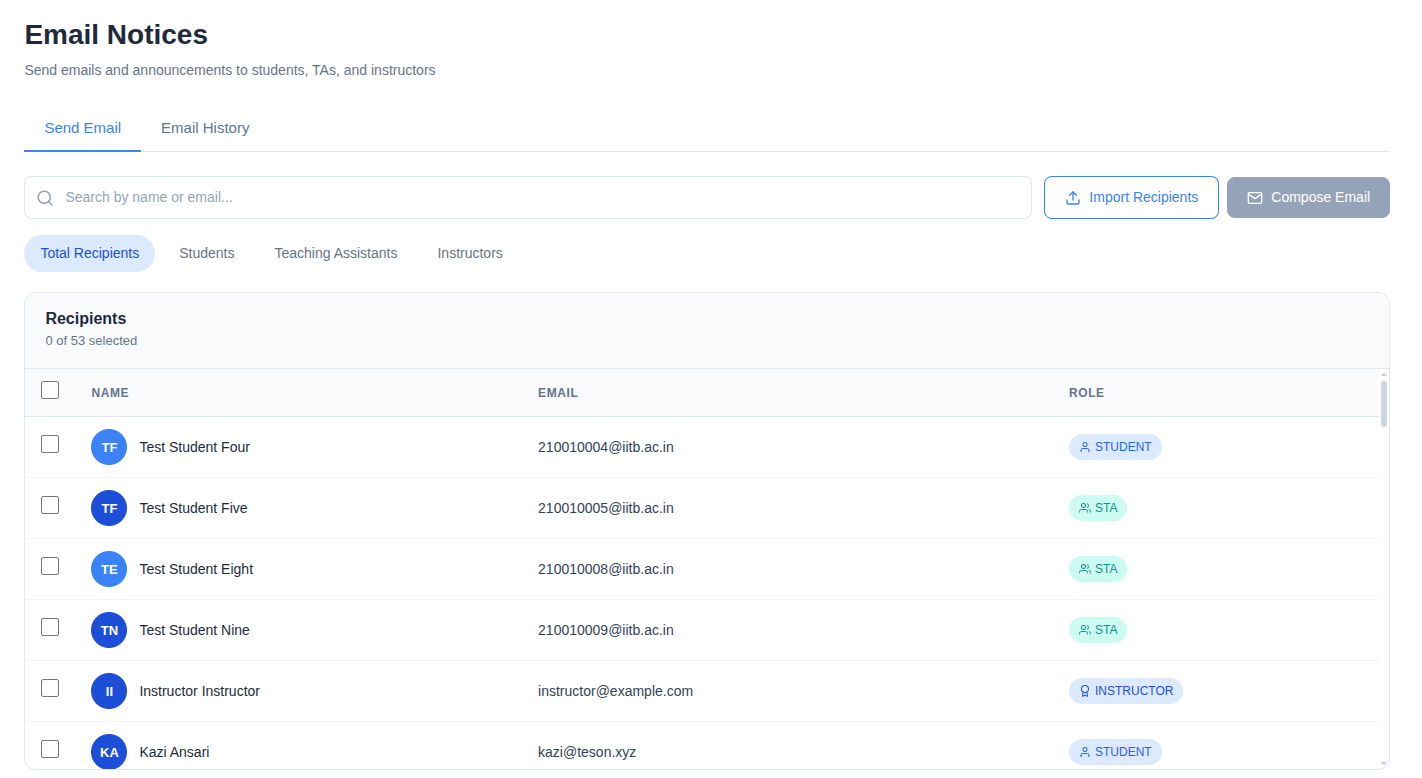
Choosing recipients
The recipients table can be filtered to Total Recipients, Students, Teaching Assistants, or Instructors; the TA bucket covers STA and JTA together.
Search by name or email, page through with Load more, and use the select-all option to select everyone across all pages, not just the visible ones.
Importing a recipient list
Import Recipients takes a .csv or .xlsx file up to 5 MB. It needs a
column headed email, which, unlike the gradebook importer, may be anywhere in
the header row. CSVs must be UTF-8.
The results are grouped into:
matched: enrolled, will be added
not enrolled: on your list but not in the course
invalid emails: with row numbers
duplicates removed
The results screen also offers include not-enrolled emails anyway, so you can deliberately add external addresses that are not on the course.
Importing adds people to the recipient selection. It does not send anything. You still compose and send afterwards.
⚠️ JTAs cannot import recipients, but instructors and STAs can — this is not owner-only. Do not treat it as a security boundary: the import endpoint checks only that the account is flagged as an instructor, not that it holds any role on this course.
Composing
Recipients (removable chips), Subject, CC (comma-separated), and a rich-text Message.
Sending runs in the background with a live progress card, and every sent email is kept in Email History, searchable by subject or sender and filterable by date.
8.3 The Discussion Forum
Where: sidebar → Interactions → Discussion Forum
Threads can be sorted by Recent, Earlier, Popularity, Importance, or Instructor, and searched by free text. Search matches thread titles, thread bodies, and author names.
Creating a thread
+ Create Thread gives you a Title, a Description, Tags, and three options:
Pin this thread to the top
Mark as important
Post anonymously (identity will be revealed only to Instructor/TAs): available at creation only; the checkbox disappears when you edit the thread
Moderating
The thread ⋮ menu offers Edit, Delete, Pin Content / Unpin Content, and Mark as Important / Unmark Important.
Threads and comments can both be upvoted. On comments you can also delete and pin. Replies are threaded beneath comments, and upvoting is the only action available on them.
⚠️ You cannot edit a student’s thread, only delete it. Attempting to edit gives “Cannot edit student’s threads, only delete is permitted”. Correct a student by replying, not by rewriting their post.
Anonymity
Students can post anonymously, and the checkbox tells them plainly that their identity is revealed to instructors and TAs.
Whether you can actually see through anonymity depends on the course setting Reveal identity of anonymous posts to Instructor/TAs (§2.7, Card 5), which is on by default.
Author role badges (INSTRUCTOR, TA, STA, JTA) appear on staff posts, so students can tell an official answer from a peer’s.
Forum email
Like announcements, forum email is governed by a single course setting: Emails sent to all students on every post, which is off by default.
Think hard before turning this on for a large or active course. Once on, every post from every student emails the entire class, which reliably drives people to filter BodhiTree mail into a folder they never read.
Individual users also have their own forum email and digest preferences, so the course setting is an upper bound rather than a guarantee that everyone is reached.
8.4 Schedule
Where: sidebar → Interactions → Schedule
A drag-and-drop calendar with month, week, day, and agenda views.
Drag across a slot to create an event
Drag or resize an event to move it
Click an event to edit or delete it
Each event has a Title, a Comment, Start Date and End Date, and, most usefully, a Chapters / Sections picker. Ticking a chapter selects all of its sections, and BodhiTree generates links to that content automatically.
⚠️ Do not link a whole large chapter to a single event. The linked sections are stored in one 100-character field, so an event linking more than roughly a dozen sections fails to save. Split it across several events instead.
Saving an event identical to an existing one — same title, dates, comment and links — is refused with “A copy of entered schedule already exists.” rather than creating a duplicate.
Any instructor on the course can create, edit and delete events; this is not restricted to the course owner.
Students clicking an event in their calendar get the description plus direct links into the linked material. This makes the schedule a genuine navigation aid rather than just a list of dates.
8.5 BodhiBot chat logs
Where: sidebar → Interactions → BodhiBot Chats
If BodhiBot is enabled for the course and chat logging is turned on (§2.7, Card 1), instructors and STAs can read students’ conversations with the chatbot here.
Both settings are off by default, both must be on, and logging can only be enabled after BodhiBot itself has been saved as enabled.
The screen is a table of students — email, name, role, time of last message, and message count — with a View Chat button on each row that opens the transcript. Two tabs separate General chats from Programming Activity chats, the latter scoped by lab and activity. You can sort by any column, but there is no search and no export.
AI features require separately deployed services. If BodhiBot does not respond on your installation, it is not configured; check with your administrator.
Previous: 7. Grades and the Gradebook · Next: 9. Analytics and Statistics